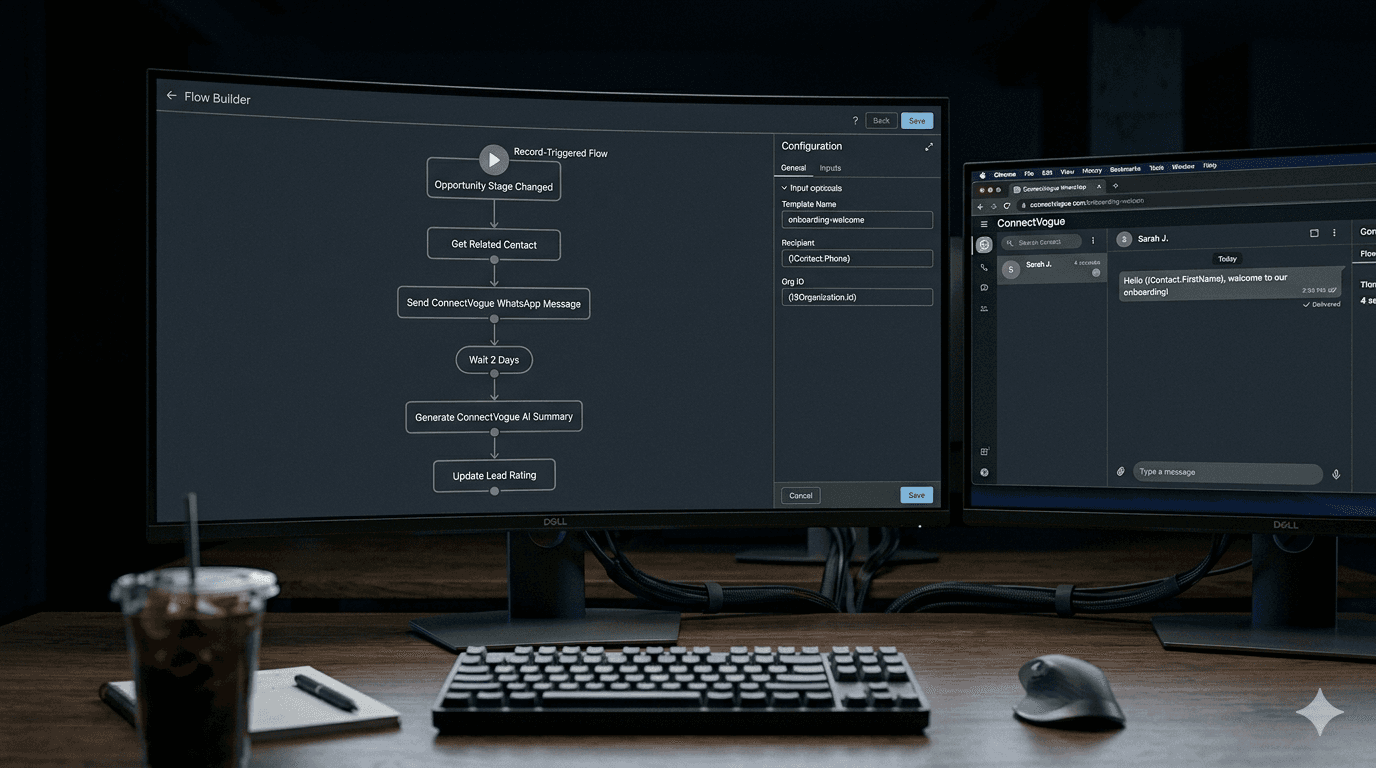
01Why Salesforce Flow is the Ideal Home for WhatsApp Automation
Salesforce Flow Builder is the platform's most powerful no-code automation tool. It handles record-triggered automations, scheduled automations, screen flows, and autolaunched flows — covering virtually every business automation scenario. For WhatsApp and SMS messaging automation, Flow Builder is the ideal home: it keeps the automation logic inside Salesforce, makes it maintainable by admins (not developers), and connects messaging directly to every other Salesforce process.
Before ConnectVogue, adding WhatsApp to a Salesforce Flow required custom Apex development — writing a callout to a third-party messaging API, handling authentication, managing error states, and testing deployment across environments. That is 1–3 days of developer time per automation use case.
ConnectVogue eliminates this entirely. Five pre-built invocable Apex actions are available in Flow Builder's Action palette immediately after installation. Admins drag them in, configure parameters, and ship automations in hours, not days.
This is a foundational shift in how WhatsApp gets embedded in enterprise Salesforce workflows. The majority of WhatsApp automation in 2026 should be admin-built, not developer-built.
02The Five ConnectVogue Flow Builder Actions Explained
1. Create ConnectVogue Conversation: Creates a new CV_Conversation__c record in Salesforce, linked to a Contact or Lead by ID. Input parameters: Contact/Lead ID, Phone Number, Channel (WhatsApp or SMS). Output: the new Conversation record ID. Use this as the first action when you want to initiate a new conversation thread from a Flow.
2. Send ConnectVogue Message: Sends a single WhatsApp or SMS message to an existing conversation. Input parameters: Conversation ID, Message Body (text), Media URL (optional for image/document), Channel. This action makes the actual API callout to Meta or Twilio using your BYOK credentials. Output: Message record ID and status.
3. Send ConnectVogue Bulk Message: Sends an approved WhatsApp Message Template to a list of phone numbers simultaneously. Input: Template Name, list of phone numbers, template parameter values (for dynamic personalisation). Output: a list of Message record IDs and delivery statuses. Use for marketing campaigns, appointment reminders, or renewal notices.
4. Generate ConnectVogue AI Summary: Triggers the Agentic AI layer to analyse a conversation and generate a summary. Input: Conversation ID, AI Provider (optional — defaults to your org setting). Output: Summary text, Quality Rating (Hot/Warm/Cold), Numeric Score (1–10), and Recommended Next Action. The summary is also automatically saved to the conversation record.
5. Get ConnectVogue Messages: Retrieves message records for a conversation. Input: Conversation ID, optional limit (default 50). Output: a list of CV_Message__c records with body, direction, status, and timestamp. Use this when you need to process message content in subsequent Flow elements.
03Use Case 1: Automated Customer Onboarding Flow
Scenario: When a new customer's Opportunity is marked 'Closed Won', automatically send a WhatsApp welcome message and initiate the onboarding sequence.
Flow design: Record-Triggered Flow on Opportunity, triggered when Stage = 'Closed Won'. Decision element: check if the related Contact has a phone number. If yes, call 'Create ConnectVogue Conversation' with the Contact ID and phone number, channel = WhatsApp. Call 'Send ConnectVogue Message' with a welcome message body. Wait 2 days (Time-Based Trigger). Call 'Generate ConnectVogue AI Summary' to check if the customer has replied or needs follow-up. If the summary indicates no response, call 'Send ConnectVogue Message' with a check-in message.
This entire onboarding sequence runs automatically. No SDR needs to manually send onboarding messages. The Salesforce record shows the full conversation thread in the ConnectVogue console. The onboarding team sees at a glance which customers are engaged and which need attention.
04Use Case 2: SaaS Renewal Reminder Campaign
Scenario: 30 days before a Salesforce Contract expiration date, automatically send a personalised renewal reminder via WhatsApp template. Follow up with SMS if no WhatsApp delivery confirmation after 48 hours.
Flow design: Scheduled Flow running daily. Query all Contracts where End Date = TODAY() + 30 and Status = 'Activated'. For each Contract, retrieve the Account's primary Contact. Call 'Send ConnectVogue Bulk Message' with an approved WhatsApp template: 'Hi {1}, your {2} subscription renews on {3}. Reply YES to renew or click here to review your plan.' After 48 hours, check message status. If status = 'Failed' or 'Sent' (not Delivered), call 'Send ConnectVogue Message' with channel = SMS as fallback.
This omnichannel renewal flow ensures maximum reach. WhatsApp first (higher open rates), SMS fallback (higher deliverability). All interactions are automatically logged to the Contract's related Contact record in Salesforce.
05Use Case 3: AI-Powered Inbound Lead Routing
Scenario: When an inbound WhatsApp message creates a new CV_Conversation__c, automatically qualify the lead with AI and route Hot leads to the appropriate sales team.
Flow design: Record-Triggered Flow on CV_Conversation__c, triggered on Create. Call 'Generate ConnectVogue AI Summary'. Decision: if Quality Rating = 'Hot', assign the linked Lead to the 'Hot Leads' queue, create a High Priority Task for the queue owner due in 2 hours, send a Slack notification via Salesforce's Slack integration. If Quality Rating = 'Warm', add the Lead to the 'Warm Nurture' Campaign. If Quality Rating = 'Cold', send the lead a standard acknowledgement template via 'Send ConnectVogue Message'.
This flow runs in under 5 seconds from the moment the inbound message arrives. Hot leads are in front of a sales rep within minutes, not hours. The automation is built entirely by an admin in Salesforce Flow Builder — no developer required, no external tool, no additional cost.
06Flow Builder Best Practices for WhatsApp Automation
Error handling: Always add a Fault Path to your Flows when using ConnectVogue actions. If a message send fails (expired token, invalid phone number, Meta API outage), the Fault Path should log an error to a custom object or Salesforce Log record. Without a Fault Path, a failed message send can silently break your entire Flow.
Rate limiting: Meta's WhatsApp API has per-number messaging limits. For bulk sends, avoid sending more than 1,000 messages per hour per phone number. Use the 'Send ConnectVogue Bulk Message' action's built-in batching rather than looping 'Send ConnectVogue Message' in a large collection.
Template approval timing: Before launching a Flow that uses a WhatsApp template, verify the template is 'APPROVED' in Meta Business Manager. Flows that reference unapproved or paused templates will fail. Build a pre-launch checklist that includes template status verification.
AI summary context: 'Generate ConnectVogue AI Summary' works best on conversations with at least 5–10 messages. On very short conversations (1–3 messages), the AI has limited context and may return a low-confidence rating. Build a Decision element to check message count before calling the AI summary action.
“Salesforce Flow Builder + ConnectVogue's five invocable actions = a complete no-code WhatsApp and SMS automation platform inside Salesforce. Build onboarding flows, renewal campaigns, and AI-powered lead routing without writing a line of code. This is the standard for 2026.”
Frequently Asked Questions
What are the five ConnectVogue Salesforce Flow Builder actions and what does each one do?
How do I build an automated WhatsApp onboarding sequence in Salesforce Flow without code?
How does BYOK architecture reduce the cost of each WhatsApp message sent through Salesforce Flows?
What error handling best practices should I follow when using WhatsApp actions in Salesforce Flow?
Can I build a WhatsApp-to-SMS channel-fallback automation in Salesforce Flow Builder?
Keep Reading
All InsightsWhat Happens to Your WhatsApp Data When You Use 360SMS? A GDPR and Data Residency Audit
Every inbound WhatsApp message routed through a middleware vendor makes that vendor a GDPR data processor. Here is exactly what that means for Salesforce teams in the EU, UK, and UAE — and how native architecture eliminates the risk entirely.
360SMS Alternative in 2026: Why Salesforce Teams Are Switching to BYOK Architecture
360SMS dominates the Salesforce AppExchange with 60,000+ users. But for scaling teams, BYOK architecture cuts messaging costs by 40–60%, keeps all data inside your org, and delivers multi-provider Agentic AI that 360SMS cannot match.